

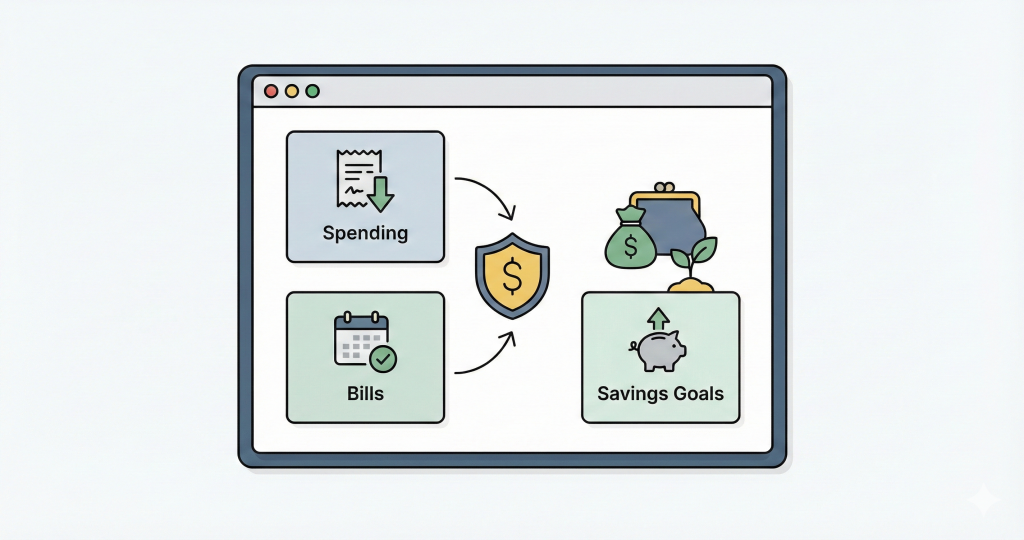
If you've ever tried to budget in Notion, you already know the trade-off: it's flexible, but most templates become too manual to keep up with.
This guide shows you exactly how to build a budget system that updates automatically when you add transactions.
If you're looking for a more complete budget system, here's what a complete budget system looks like in Notion Finance Tracker:
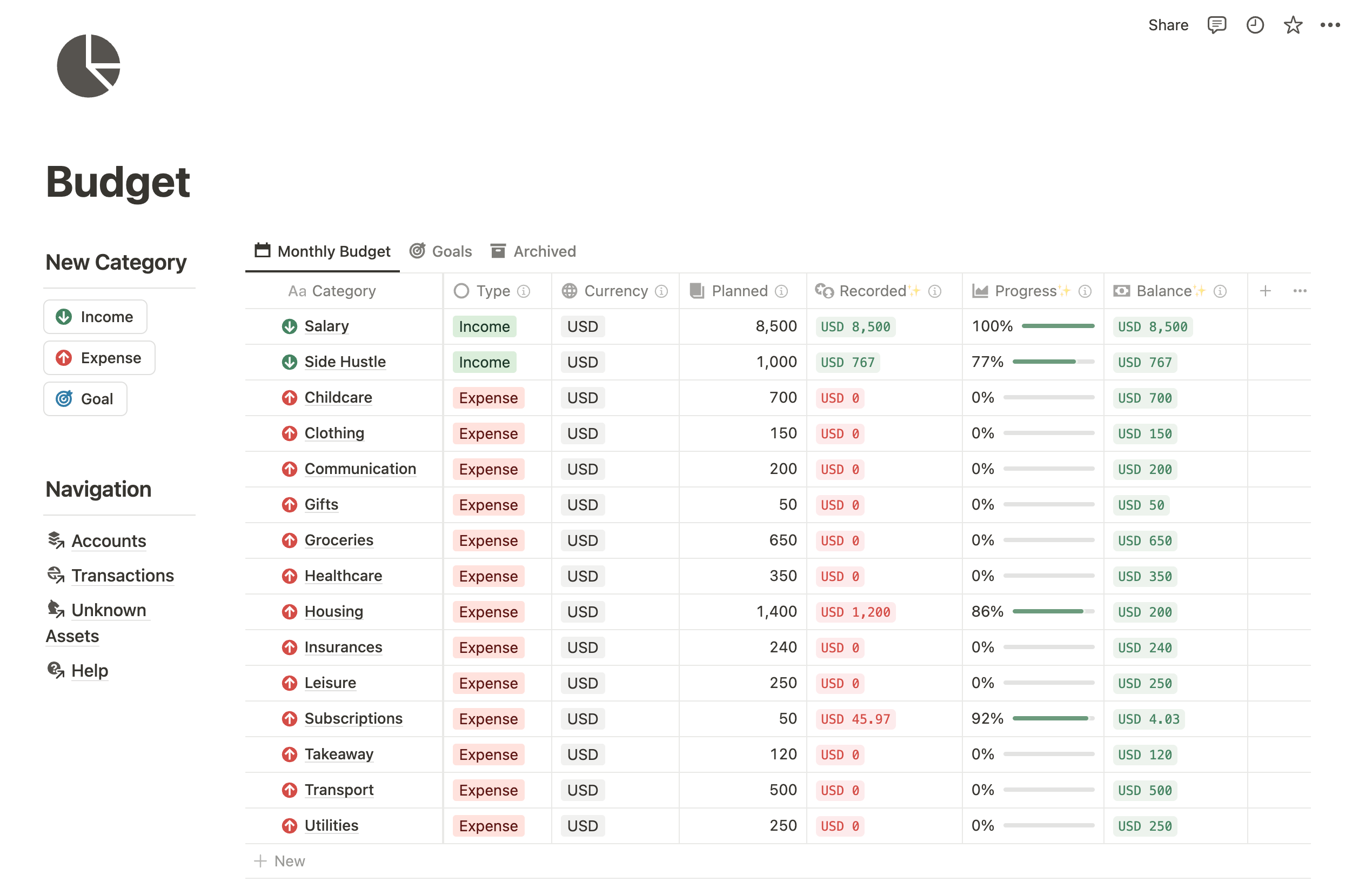
The two-database structure
A working budget needs two databases:
- Budget - your categories and targets (Groceries: $400/month)
- Transactions - your actual spending (Grocery run: $45)
The key is connecting them with a relation, so when you add a transaction and tag it with a budget category, the budget updates automatically.
Transaction → links to → Budget Category
Budget Category → rolls up → all linked transactions
Setting up the Transactions database
Create a database called Transactions with these properties:
| Property | Type | Purpose |
|---|---|---|
Name | Title | What you bought |
Date | Date | When it happened |
Amount | Number | How much you spent |
Budget | Relation | Links to your Budget database |
Now add three formula properties that return true/false depending on whether the transaction falls within a time period:
This Week (formula, returns checkbox):
year(prop("Date")) == year(now()) and
week(prop("Date")) == week(now())
This Month (formula, returns checkbox):
year(prop("Date")) == year(now()) and
month(prop("Date")) == month(now())
This Year (formula, returns checkbox):
year(prop("Date")) == year(now())
These return true if the transaction is within the period, false otherwise. The Budget database will use these to filter transactions.
Setting up the Budget database
Create a database called Budget with these properties:
| Property | Type | Purpose |
|---|---|---|
Name | Title | Category name (Groceries, Rent, etc.) |
Weekly Target | Number | How much you want to spend per week |
Monthly Target | Number | How much you want to spend per month |
Yearly Target | Number | How much you want to spend per year |
Transactions | Relation | Links to Transactions (the other side of the relation you created) |
Now add formulas that filter the linked transactions and sum the amounts:
Weekly Occurred (formula):
sum(prop("Transactions").filter(current.prop("This Week")).map(current.prop("Amount")))
Monthly Occurred (formula):
sum(prop("Transactions").filter(current.prop("This Month")).map(current.prop("Amount")))
Yearly Occurred (formula):
sum(prop("Transactions").filter(current.prop("This Year")).map(current.prop("Amount")))
These formulas:
- Take all linked transactions (
prop("Transactions")) - Filter to only those where the period checkbox is true (
.filter(current.prop("This Month"))) - Extract the amount from each (
.map(current.prop("Amount"))) - Sum them (
sum(...))
Then add formulas for what's left and progress:
Weekly Left:
prop("Weekly Target") - prop("Weekly Occurred")
Weekly Progress:
if(
  prop("Weekly Target") > 0,
  prop("Weekly Occurred") / prop("Weekly Target"),
  0
)
Repeat for monthly and yearly. Format the Progress properties as percentages.
How it works in practice
- You add a transaction: "Lunch - $12 - tagged to Eating Out"
- The transaction's
This Monthformula returns true (because it's this month) - The "Eating Out" budget's
Monthly Occurredformula filters all linked transactions whereThis Monthis true, then sums their amounts Monthly LeftandMonthly Progressupdate automatically
When the month changes, old transactions' This Month formulas return false, so they're excluded from the filter. Your budget resets automatically.
Creating useful views
In your Budget database, create these views:
| View | Setup | Use |
|---|---|---|
| Weekly | Show Weekly Target, Weekly Occurred, Weekly Left, Weekly Progress | Quick check during the week |
| Monthly | Show monthly columns, sort by Monthly Progress descending | See which categories are overspent |
| Yearly | Show yearly columns | Big picture view |
In your Transactions database:
| View | Filter | Use |
|---|---|---|
| This Month | Date is within "This month" | Current spending |
| By Category | Group by Budget | See breakdown |
Adding income and goals
The same structure works for income:
- Add budget categories like "Salary" or "Freelance"
- Add income transactions linked to those categories
- Track income targets vs actual
For savings goals, create budget categories with targets representing how much you want to save, then add "savings" transactions when you transfer money to savings.
Recurring expenses
For subscriptions and bills that repeat:
- Create a database template with the recurring expense details
- Click the three dots on the template → "Repeat" → set frequency
Notion auto-creates the entry on schedule.
Recurring database that generates transactions automatically and links them to accounts and budgets.What Notion Finance Tracker adds
The free template above covers basic budgeting. adds:
- Accounts - track balances across checking, savings, credit cards
- Recurring transactions - bills auto-create on schedule
- Multi-currency - automatic conversion if you spend in different currencies
- Net worth - see how budgeting affects your overall financial position
- Charts - visual progress over time
Get the template
Start free: The has the two-database structure described above, ready to use.
Want the full system? connects budgeting to accounts, investments, and net worth.